Sketches and inspiration
Show what you mean, instead of only describing it.
Some ideas are much easier to show than to explain. Mapwright gives you two ways to do that, right on a card.
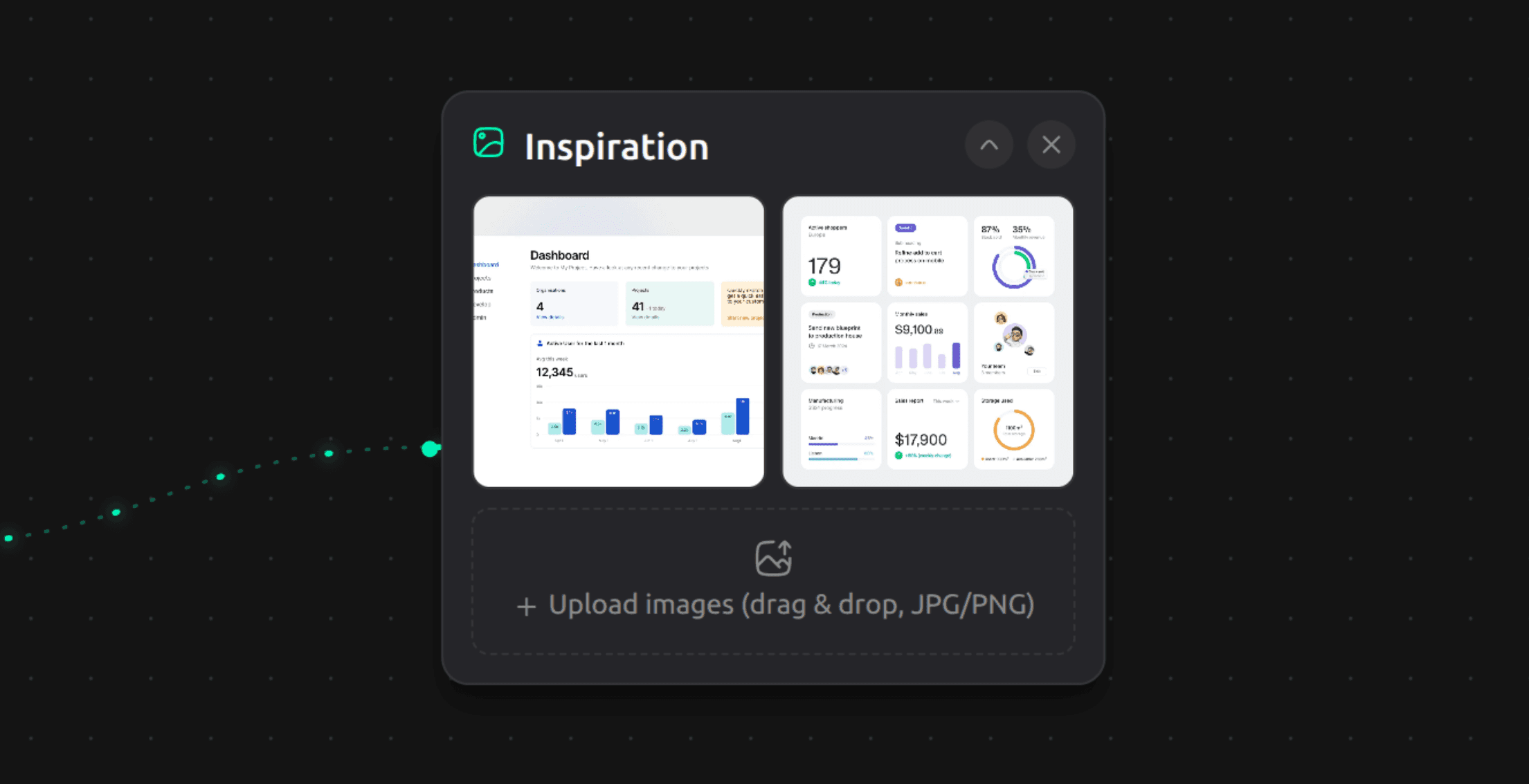
Inspiration
Attach reference images to any card, screenshots of apps you like, a color palette, a competitor's layout, anything that captures the look you're going for. Drag and drop a file onto the card, or click to browse for one. These images become part of the picture your AI assistant sees when it generates a spec for that feature, so "make it look like this" becomes something it can actually act on, not just a sentence to interpret.
Wireframes
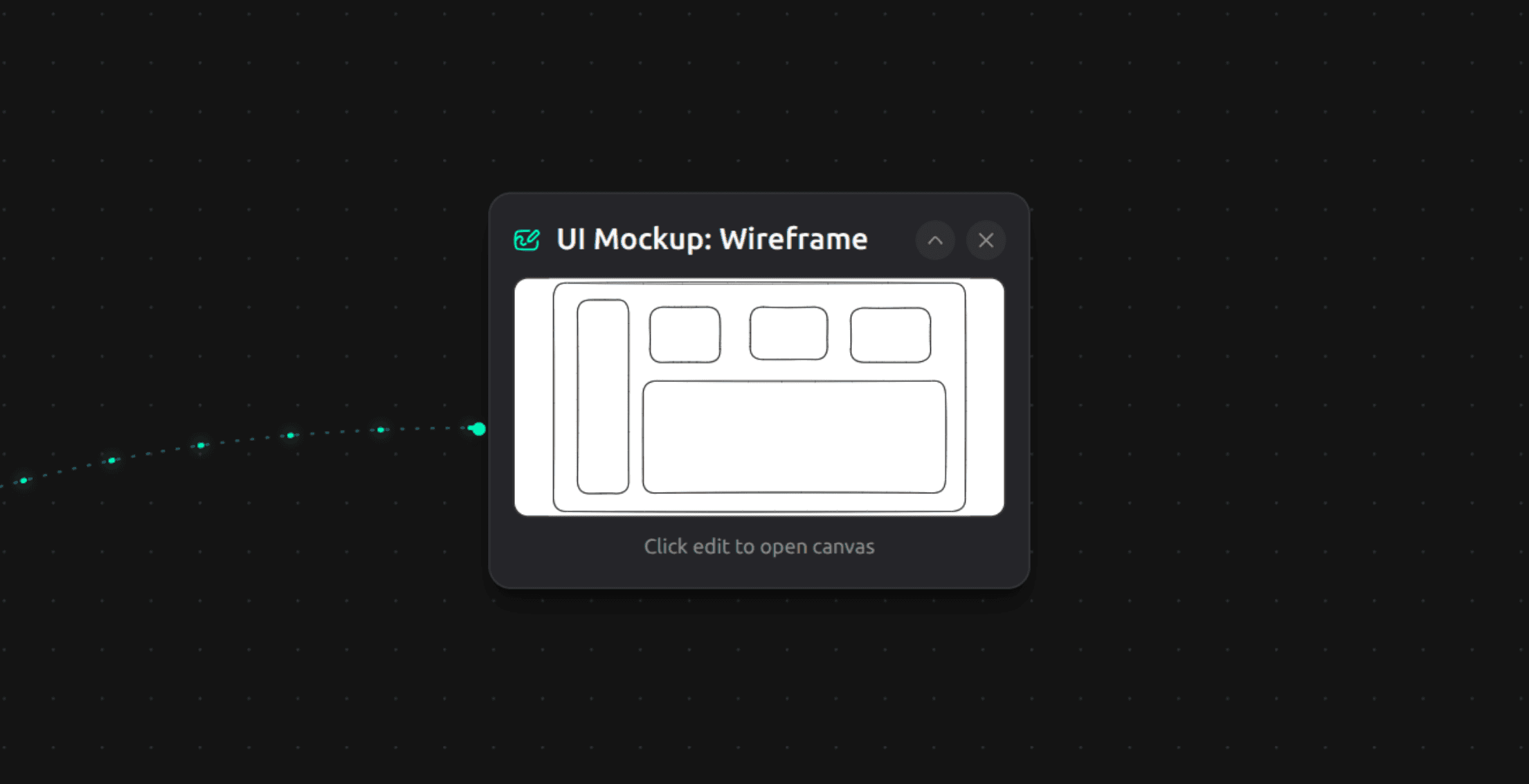
A wireframe is a rough sketch of a screen, drawn right inside Mapwright. You don't need any design skill or a separate tool. Open the wireframe editor from a card, rough out the layout (a header here, a button there, a list of items below it), and save it. It doesn't need to be polished. The point is to capture the shape of a screen, not to produce a finished design.
Like inspiration images, a saved wireframe feeds directly into spec generation, so your AI assistant has a real picture of the screen it's building, not just a text description of it.
Why this matters
The more concrete the picture your AI assistant starts from, the less back and forth it takes to get a feature looking and working the way you actually meant. A rough sketch or a couple of reference images can save several rounds of "no, more like this."